
Slack
Give Slackbot access to all your tools
Slackbot can use your Gatana tools from a Slack conversation. You add a Slack app, choose how users connect to Gatana, and give them access to tools. Gatana applies their permissions and profiles, and records tool calls in the audit log. Gatana does not read Slack messages.
Guide
In this guide, we will integrate a free Slack workspace with Gatana using Slack Identity.
In Gatana open Integrations → Slack in the left sidebar.
1. Create
- Open api.slack.com/apps.
- Under Your App Configuration Tokens, click Generate Token. Select the workspace that will own the app.
- Paste the token into Configuration token in Gatana. Click Create Slack app.
The token expires after 12 hours. Gatana uses it to create the app and does not save it. Gatana encrypts the app's credentials before storing them.
The default app name is <organization name> Gatana. Use Customize the app to modify any details.
Create the app manually
You can also create the app yourself. This means copy-pasting a JSON document that Gatana will generate for you. To do this, click on Create the app manually and follow the structions.
2. Install
Click Add to Slack. This will redirect you to Slack where you must consent to the installation and select a workspace.
On Enterprise Grid, Install to Organization connects all workspaces in that Slack organization.
3. Authentication Policy
Choose an account policy for each workspace. New workspaces use Connect manually.
| Policy | Outcome | Use it when |
|---|---|---|
| Match by email | Automatically link accounts based on email. | Slack SSO is used and/or trust is high |
| Connect manually | Each user must verify the link once. Slackbot guides them through this. | Increase explicitness of user account linking |
| Shared service account | One service account is used for everyone | Everyone needs the same tools and credentials |
Match by email
Requires providing a list of email domains to be allowed, such as acme.com. On the first request, Gatana reads the user's email from Slack. If the domain is allowed, Gatana connects the user to the matching account.
If no account exists, the Automatically create accounts in Gatana for new emails option controls the result. This option is on by default:
- On: Gatana creates a Member account.
- Off: Gatana does not create an account. The user must connect manually.
Ideally only with Slack SSO
Gatana trusts the email address Slack provides. Without single sign-on (SSO), a Slack workspace owner can change a member's email. Allow only domains your workspace verifies. Use Connect manually if you do not control the workspace.
Connect manually
Slackbot gives each user a link to Gatana. The user signs in and confirms the connection once.
Optional: Profile
The optional workspace Profile applies to every Slackbot request, together with the user's own profiles. You do not need to assign it to each user. Existing restrictive profiles still apply. A restrictive workspace profile limits users who have no restrictive profile of their own. See Applying Profiles.
Choose a restrictive profile with only the servers Slack needs. Code Mode is another option: it gives Slackbot two tools to work with a larger tool set.
For Slack identity, select the profile here. Profiles set through a URL, request header, or Clients & API Keys do not apply.
Use Gatana from Slack
-
Open a direct message with Slackbot.
-
Click Apps and add your organization's app with +, for example Acme Gatana.
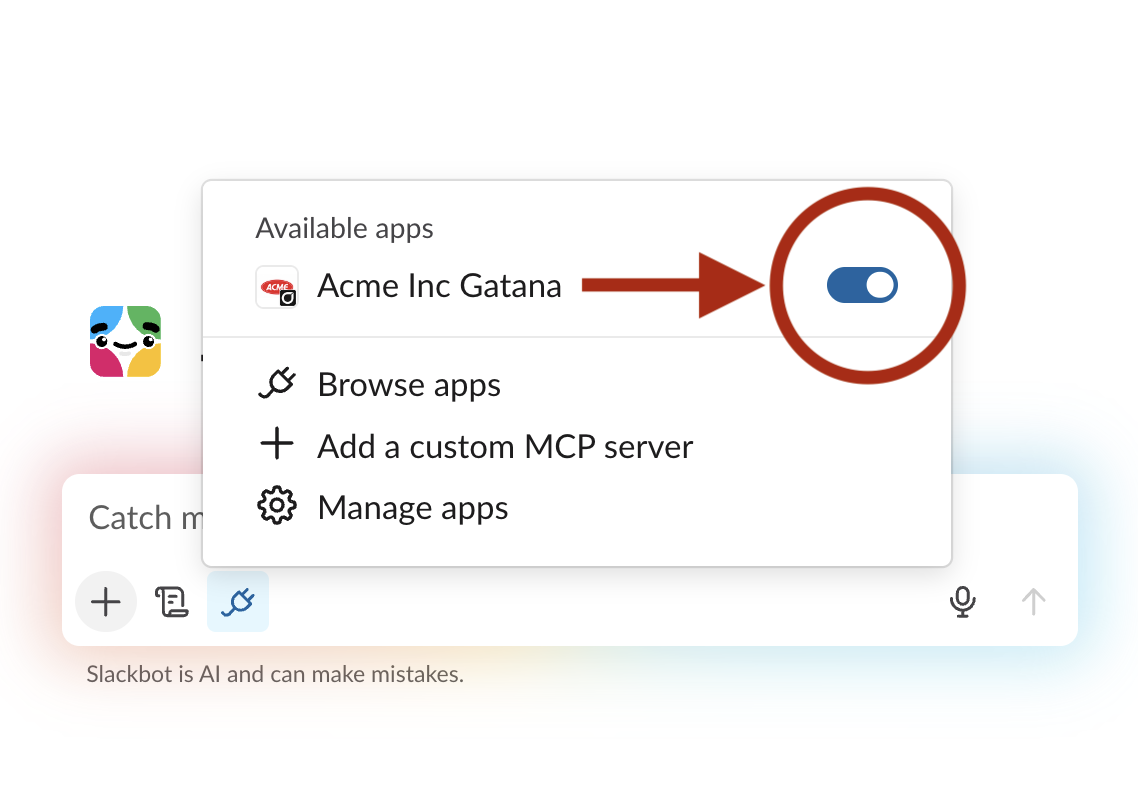
-
Ask Slackbot to use a tool.
For each tool, Slackbot asks you to Allow once, Always allow, or Deny. This also applies to tools that only read data. You can change your choice in the app's MCP settings.
Manually connect your account
If you must connect manually, Slackbot gives you a link:
- Open the link and sign in to Gatana.
- Check the Slack user, workspace, Gatana organization, and Gatana account. Select Use another account if needed.
- Click Confirm. Return to Slack and repeat your request.
Only confirm a link from your own Slackbot conversation. Each link works once and expires after 15 minutes. Ask Slackbot again if you need a new link.
The first result shows which Gatana account and profiles the connection uses.
Remove a connection
Open My Account → Slack connections and click Remove for the connection. With Match by email, the next request connects you again. Ask your administrator to change the policy to prevent this.
Limits set by Slack
- Each user can have up to 5 active MCP servers. Gatana counts as one.
- Tools must respond within 60 seconds. Slackbot stops longer calls.
Troubleshooting
| Problem | What to do |
|---|---|
| Workspace is not connected | Install the app in that workspace, or enable the workspace in Gatana |
| Request comes from a bot or deleted user | Use a personal Slack account. Gatana only accepts requests from people |
| Shared service account no longer exists | Select another service account in step 3 |
| Organization has reached its user limit | Remove an unused Gatana user, or use Connect manually with existing accounts |
| Gatana account is disabled | Enable it under People & Accounts |
| Workspace has no bot token | Install the app in that workspace again |
| Slack reports an error, but Gatana shows no request | Check that Slack can reach your Gatana URL. Compare the signing secret with Basic Information in Slack. If it differs, remove the app from Gatana, save it manually with the current secrets, and install it again |
Remove app from Gatana removes the app, all connected workspaces, and their user connections from Gatana. The app stays in Slack.
How Slack identity works
- Slack sends a signed request to your organization's MCP URL, such as
https://acme.gatana.ai/mcp. - Gatana checks the signature and rejects requests older than five minutes.
- Gatana uses the workspace's account policy to identify the Gatana user, then checks access to the tool.
- Gatana removes the Slack identity details before sending the request to the tool server.
Gatana encrypts the app secrets and workspace bot tokens before storing them. Under Clients & API Keys, this connection appears as Slackbot.
OAuth sign-in
Use this method if every user must sign in through OAuth. It requires a paid Slack plan. A Free workspace rejects the app with team_not_eligible.
You create this app in Slack. You do not use the Slack page in Gatana.
Create the app
- Open api.slack.com/apps. Click Create New App, then From a manifest.
- Select the workspace and paste the manifest below. For Gatana Cloud, use
https://gatana.ai/mcp. For self-hosted Gatana, replace it with your public HTTPS MCP URL.
{
  "display_information": {
    "name": "Gatana",
    "description": "Your organization's tools, from Slackbot"
  },
  "features": {
    "bot_user": {
      "display_name": "Gatana",
      "always_online": true
    }
  },
  "oauth_config": {
    "scopes": {
      "bot": ["mcp:connect"]
    }
  },
  "mcp_servers": {
    "gatana": {
      "url": "https://gatana.ai/mcp",
      "auth_type": "dynamic_client_registration"
    }
  }
}- Click Install to Workspace, or Install to Organization on Enterprise Grid. Approve the
mcp:connectpermission. - Ask users to follow the steps below.
Connect as a user
- Open a direct message with Slackbot.
- Click Apps and add Gatana with +.
- Choose your Gatana organization, sign in, and approve the connection.
- Ask Slackbot to use a tool.
Manage the connection under Clients & API Keys, where it appears as Slack. You can assign a profile, view tool calls, or disconnect it there. The Slack limits and tool approval choices also apply.
Slack registers as an OAuth client automatically. See How the sign-in works. If Slack reports invalid_client after a year without use, change the server URL in Slack's app settings and then change it back. This makes Slack register again.
Last updated on